This mode is only used when you aren’t currently connected to the internet or there is an issue with your card reader. Ask support before resorting to this method. When ringing someone up using this method, it will not show up on the POS but will show up in your batch report
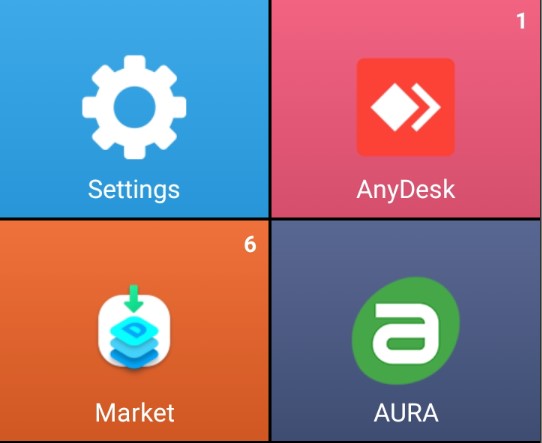
- Make sure you are on the Aura app
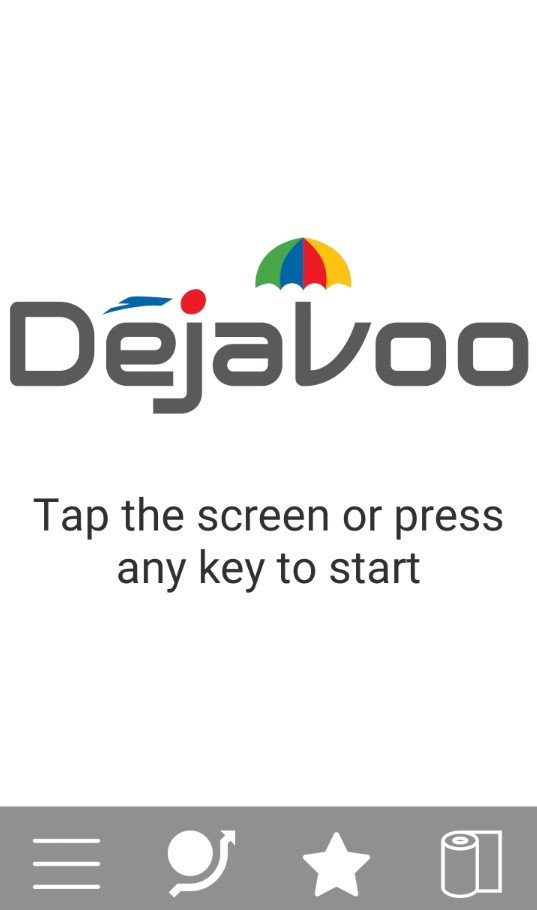
- You’ll want to click the button that looks like a circle with an arrow going around it
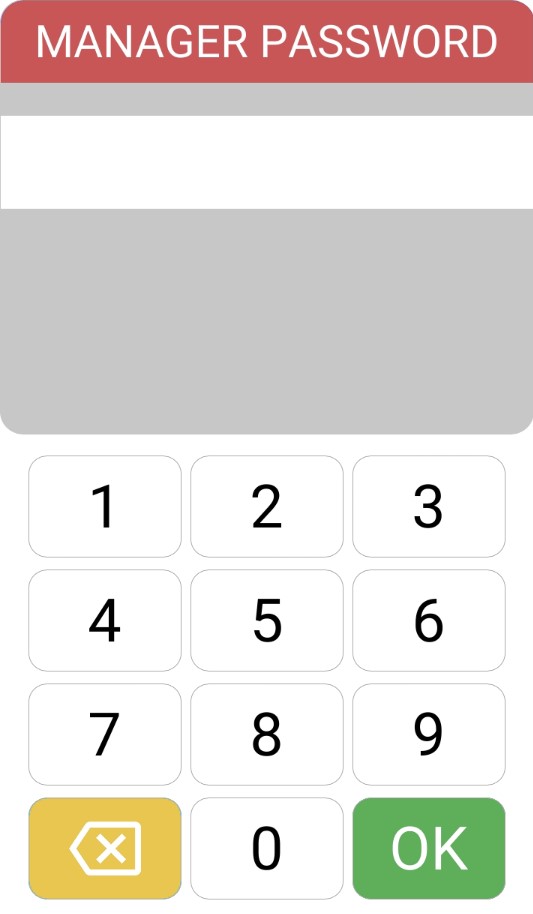
- Type in the manager password
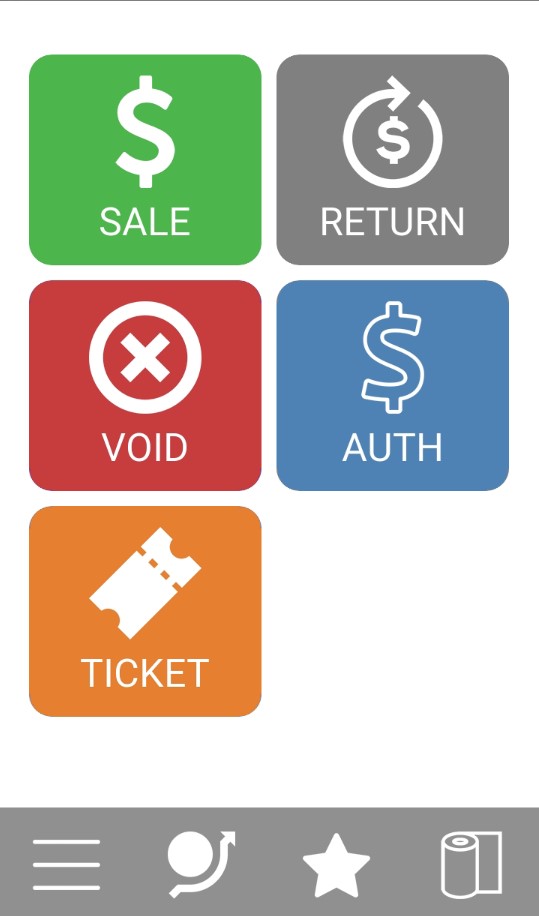
- Tap the screen and you will be greeted by a screen that shows you options
- You will need to manually type in a price on sale, including taxes and fees.
- This will bring up the payment screen, and after payment will print the receipt as normal.
Dejavoo P1 Bypass
Access DVPayLite
Navigate to the DVPayLite app on the P1 device.
Enable Bypass Mode
Tap the Bypass button located in the top right corner of the screen.
Enter Payment Details
Manually calculate and enter the correct fees and taxes for the transaction.
Input the total amount owed by the customer.
Confirm Payment
Once the information is entered, press Confirm Payment.
The terminal will process the card transaction.
Print the Receipt
A receipt will automatically print after the transaction is completed.
Provide the receipt to the customer as proof of payment.
⚠️ Important Notes:
Transactions processed in Bypass Mode will appear in the terminal batch report, but will not sync to Basil POS.
Always double-check manual fee and tax calculations before confirming payment.
When internet connection is restored, resume normal processing through Basil POS.
Visual