To get your KDS auth code if you don’t already have one, navigate to basilbackoffice.com and login using your credentials. Once on the sales overview page, find Devices on the left hand side and click on Printers.
From here, you can click +Printer in the top right and enter a name on the Printer name portion.
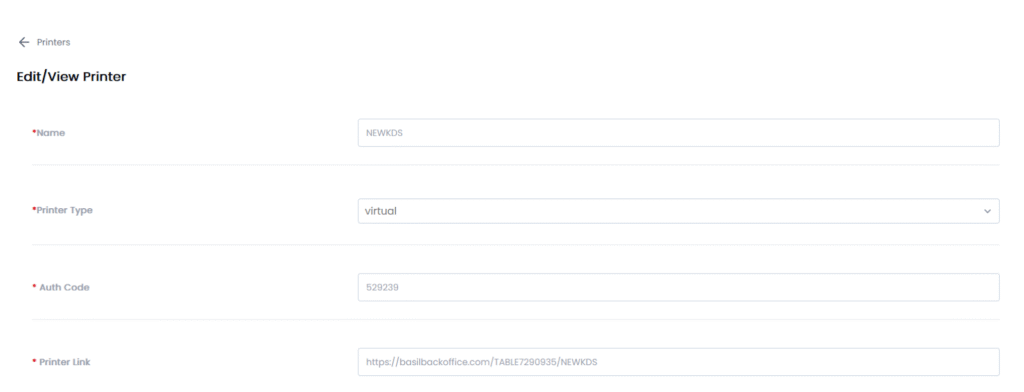
Make sure the Printer Type field says Virtual. You can add items now. But once you hit create the auth code and link will pop up which you can use to login.
To review an existing auth code simply find the KDS on your printers page and hit the pencil Icon to reveal the auth code under the details.